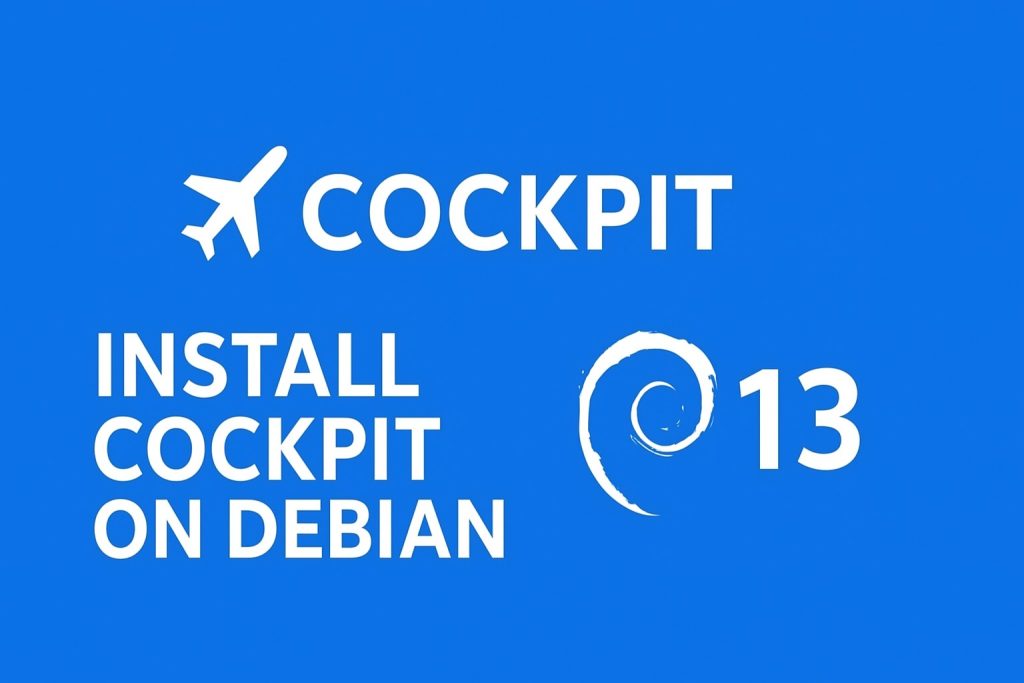

Cockpit is a modern, web-based server management interface that lets you administer your Debian 13 server directly from a browser: manage storage, networking, updates, performance, and logs from a clean web UI.
On RHEL-based systems, Cockpit comes nicely integrated out of the box. On Debian 13, we can achieve a similar full-featured but lean setup by installing Cockpit and only the necessary components—without pulling in extra roles you don’t need.
In this guide, we’ll:
- (Optionally) enable Debian backports
- Install Cockpit with the right modules
- Add missing packages for full server admin functionality
- Avoid unnecessary roles and bloat
1. Prerequisites
You’ll need:
- Debian 13 server (or VM) with root or
sudoaccess - Basic terminal familiarity
- Port 9090/tcp open in your firewall
Update your system first:
sudo apt update
sudo apt upgrade -y
2. (Optional) Enable Debian Backports
Cockpit is available in Debian repositories, but newer builds and components may appear first in backports. Enabling backports gives you the option to install newer versions when needed.
Check your sources in the directory below, check all the .soruces files:
/etc/apt/sources.list.d/If you don’t see a backports line, add one (replace trixie with your actual codename if needed):
echo "deb http://deb.debian.org/debian trixie-backports main contrib non-free-firmware" | sudo tee /etc/apt/sources.list.d/trixie-backports.list
sudo apt update
Backports are optional but recommended if you want more up-to-date Cockpit components.
3. Understanding the Cockpit Components
Instead of installing random roles, we’re deliberately choosing a minimal but complete set of packages to mirror a full-featured RHEL-style Cockpit:
Core Web Console
cockpit
The main Cockpit web console. Provides the web service on port 9090 and core UI.cockpit-bridge
Connects the web frontend to system services on the server. This is essential for Cockpit to function.cockpit-system
System overview dashboard, logs, services, users, and general system management.
Networking
cockpit-networkmanager
Adds a graphical networking panel to Cockpit, powered by NetworkManager.network-manager
The actual network management daemon Cockpit will control. Without this, the network page in Cockpit is limited.
Storage
cockpit-storaged
Storage management module (note the trailing d). Provides disk, partition, filesystem, and basic LVM management in the Cockpit UI.
Performance Monitoring
cockpit-pcp
Integrates Performance Co-Pilot into Cockpit, giving you rich performance graphs and historical metrics.pcp
The backend performance data collection system used bycockpit-pcp.
Updates & Packages
cockpit-packagekit
Provides an updates/packages page in Cockpit using PackageKit, so you can review and apply updates from the browser.
Diagnostics
cockpit-sosreport
Lets you create diagnosticsosreportbundles directly from Cockpit for support and troubleshooting.
This stack gives you:
- System overview
- Logs & services
- Network configuration
- Storage management
- Performance graphs
- Package updates
- Diagnostic reports
…all without pulling in container, virtualization, or cloud roles you might not want.
4. Install Cockpit and All Required Components
Run the following command:
sudo apt install \
  cockpit \
  cockpit-bridge \
  cockpit-system \
  cockpit-networkmanager \
  cockpit-storaged \
  cockpit-pcp \
  cockpit-sosreport \
  cockpit-packagekit \
  network-manager \
  pcp
What this does:
- Installs the Cockpit web console and core integration (
cockpit,cockpit-bridge,cockpit-system). - Enables network management via NetworkManager (
cockpit-networkmanager,network-manager). - Adds storage management with the correct package:
cockpit-storaged. - Adds performance monitoring via PCP (
cockpit-pcp,pcp). - Integrates updates and diagnostic tools (
cockpit-packagekit,cockpit-sosreport).
We’re explicitly not installing extra roles like containers or virtualization, so this remains lean and focused on standard server admin.
5. Enable and Start Cockpit
Cockpit normally runs via a systemd socket on port 9090.
Enable and start it:
sudo systemctl enable --now cockpit.socketCheck its status:
systemctl status cockpit.socketNext, ensure NetworkManager and PCP are running:
sudo systemctl enable --now NetworkManager
sudo systemctl enable --now pmcd
6. Open Firewall Port 9090
If you use ufw:
sudo ufw allow 9090/tcp
sudo ufw reload
If you use iptables or nftables, make sure port 9090/tcp is allowed from your management network (ideally not from everywhere on the internet).
7. Log In to Cockpit
Open your browser and go to:
https://your-server-ip:9090or (if TLS isn’t set up yet):
http://your-server-ip:9090You might see a warning about a self-signed certificate; you can accept it or later configure a proper certificate using a reverse proxy (Nginx/Apache) or direct cert handling.
Log in with:
- Your regular Debian user that has
sudoaccess, or - The
rootuser (if enabled — generally not recommended over the internet)
8. What You Get With This Setup
With the above package list, Cockpit on Debian 13 offers:
System Overview & Logs
- CPU, memory, storage usage at a glance
- OS details, uptime, connected users
- Journald logs in a searchable, filterable interface
- Services (systemd units) with start/stop/restart controls
Network Management (NetworkManager UI)
- View and configure network interfaces
- Set static IP addresses, gateways, DNS, and routes
- Manage bridges, bonds, VLANs (where supported)
Storage Management (cockpit-storaged)
- View disks and partitions
- Create, format, and mount filesystems
- Manage LVM volumes and basic RAID setups
- Easily see what’s mounted where
Performance Monitoring (PCP Integration)
- Historical graphs for CPU, memory, disk, and more
- Drill-down into performance issues beyond simple “top” output
- PCP backend (
pcp) provides robust metrics collection
Updates & Packages
- See available updates from the Cockpit UI
- Trigger package updates via
cockpit-packagekit - Keep the server patched without SSHing in every time
Diagnostics (sosreport)
- Generate
sosreportwith one click for deep diagnostics - Useful for support, incident analysis, or archiving detailed system state
9. Roles Not Installed (By Design)
To keep the server focused and secure, we did not install:
cockpit-machines(VM/virtualization management)cockpit-podmanor container-related roles- Specialized modules you may never touch on a typical server
If in the future you decide you need them, you can always add them individually, for example:
sudo apt install cockpit-machines
# or
sudo apt install cockpit-podman
This way your base setup stays clean and only grows when you explicitly want more features.
10. Keeping Cockpit Up to Date
Regularly update your system:
sudo apt update
sudo apt upgrade
If you want newer Cockpit versions from backports, you can selectively upgrade:
sudo apt -t trixie-backports install cockpit cockpit-bridge cockpit-systemConclusion
By combining the main Cockpit package with a carefully chosen set of modules, you can turn Debian 13 into a powerful, browser-manageable server very similar to how Cockpit is integrated in RHEL — without adding unnecessary roles.
The key install line is:
sudo apt install cockpit cockpit-bridge cockpit-system cockpit-networkmanager cockpit-storaged cockpit-pcp cockpit-sosreport cockpit-packagekit network-manager pcp